

Meta Conversions API
Set up server-side Meta Pixel tracking through the Conversions API or Signals Gateway to bypass ad blockers and improve conversion data quality
Connect your Meta Pixel to Hardal's server-side infrastructure for enhanced conversion tracking that bypasses ad blockers and improves data quality.
Make sure to check the partner's website and API documentation for the most up-to-date information and configurations.
Meta offers two server-side solutions: Conversions API (established) and Signals Gateway (newer with enhanced privacy). Choose based on your needs.
Solution Comparison
| Feature | Conversions API | Signals Gateway |
|---|---|---|
| Setup Complexity | Standard | Simplified |
| Privacy Controls | Good | Enhanced |
| Data Enhancement | Manual | Automated |
| Custom Domains | Supported | Supported |
| Recommended For | Existing setups | New implementations |
Option 1: Meta Conversions API
Generate Meta Access Token
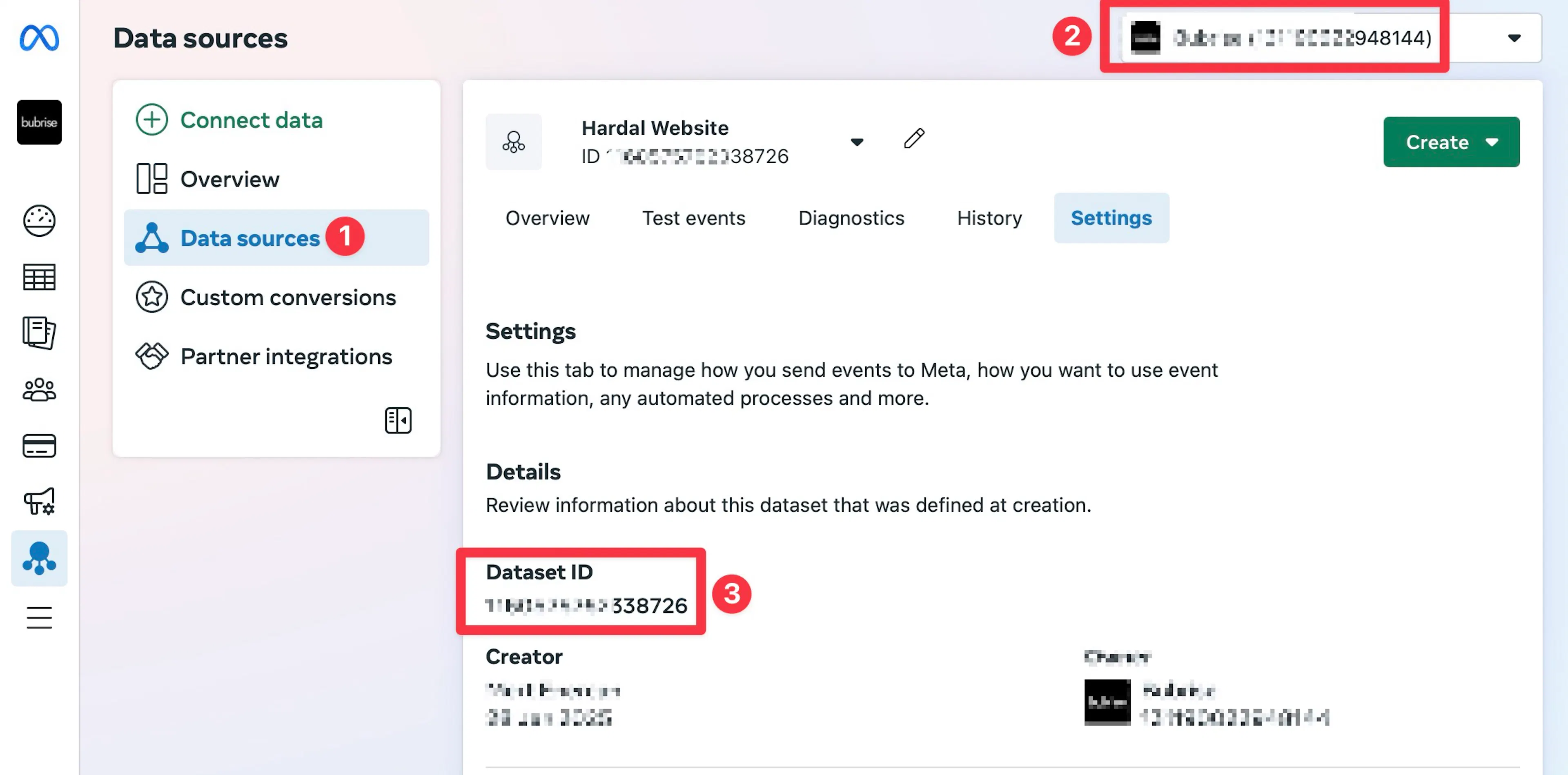
Access your Meta Business Manager and navigate to Events Manager. Select your Pixel and go to the Settings tab.
Copy and save your Dataset ID (step 3) and Business ID (step 2).
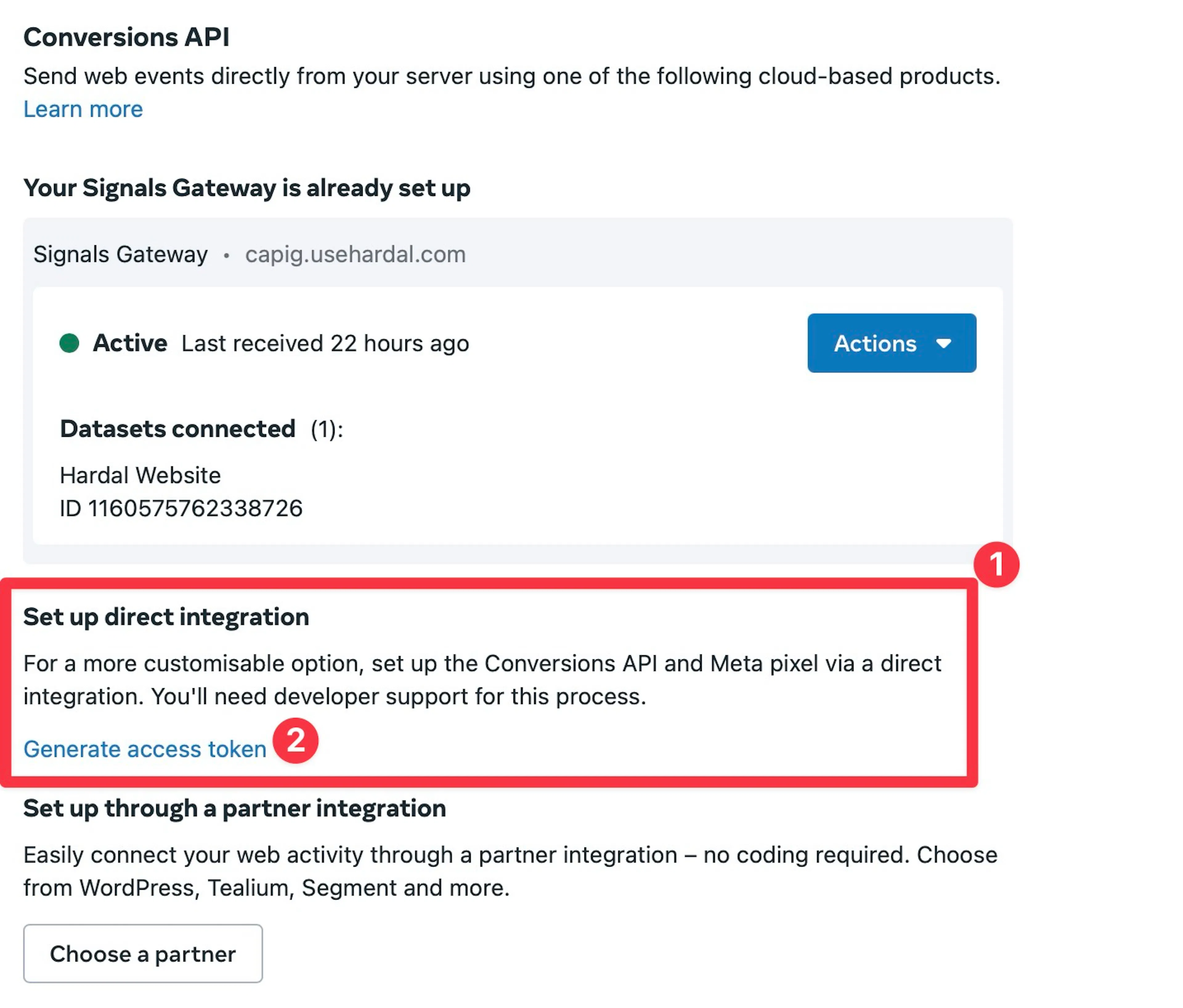
In the "Conversions API" section, click "Generate access token" and copy the generated token.
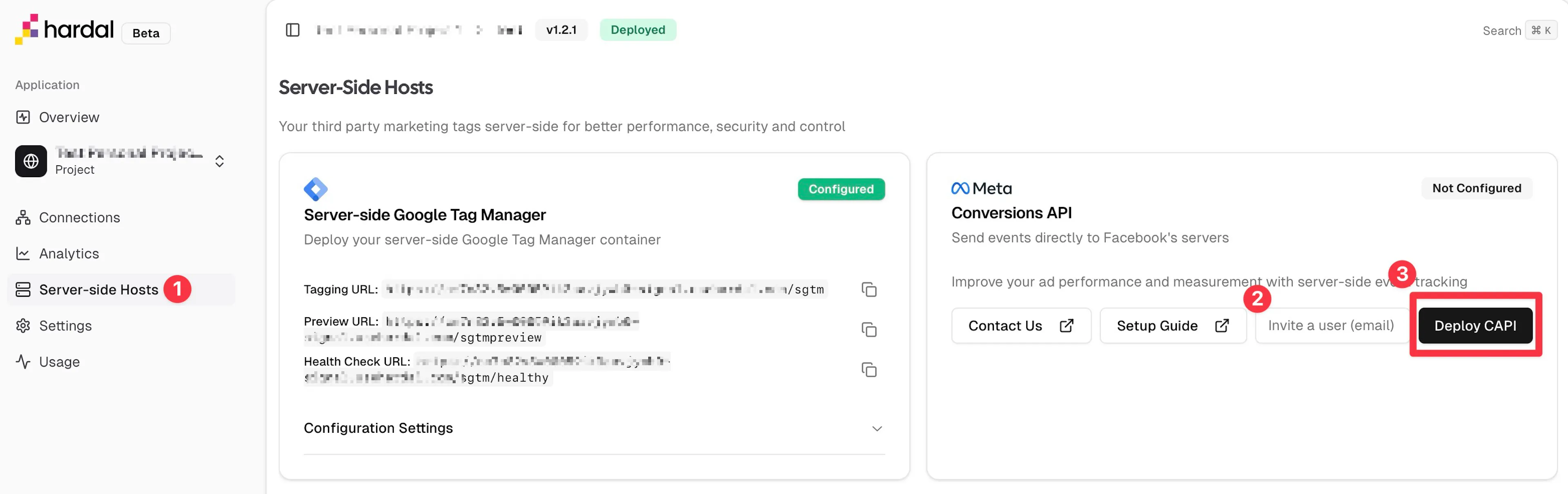
Deploy CAPI Server
Navigate to "Server-Side Hosts" in your Hardal dashboard and click "Deploy" to create a CAPI server.
You'll receive an invitation to Hardal Meta CAPI Dashboard.
Connect to Meta Pixel
In the Hardal Meta CAPI Dashboard, navigate to Data Pipelines and create a new pipeline.
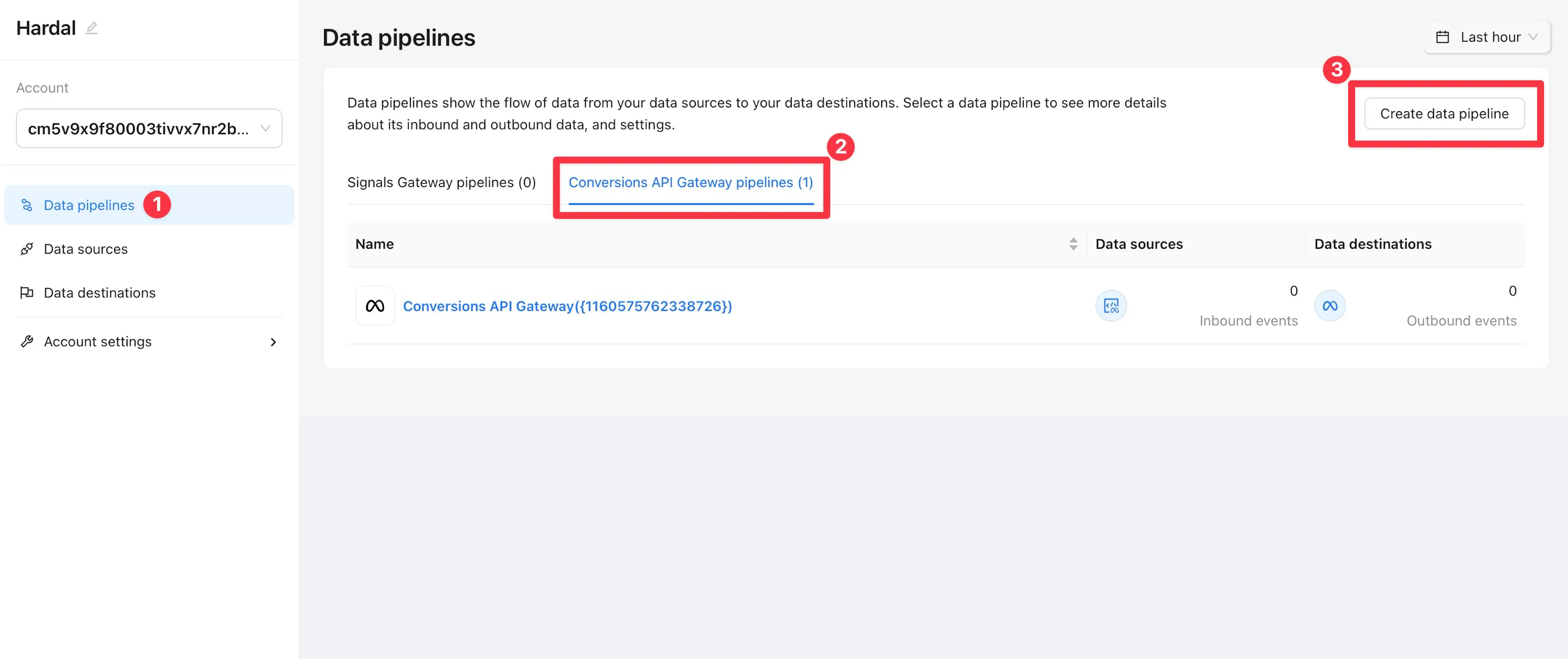
Choose "Conversions API Gateway Pipeline" and click Create.
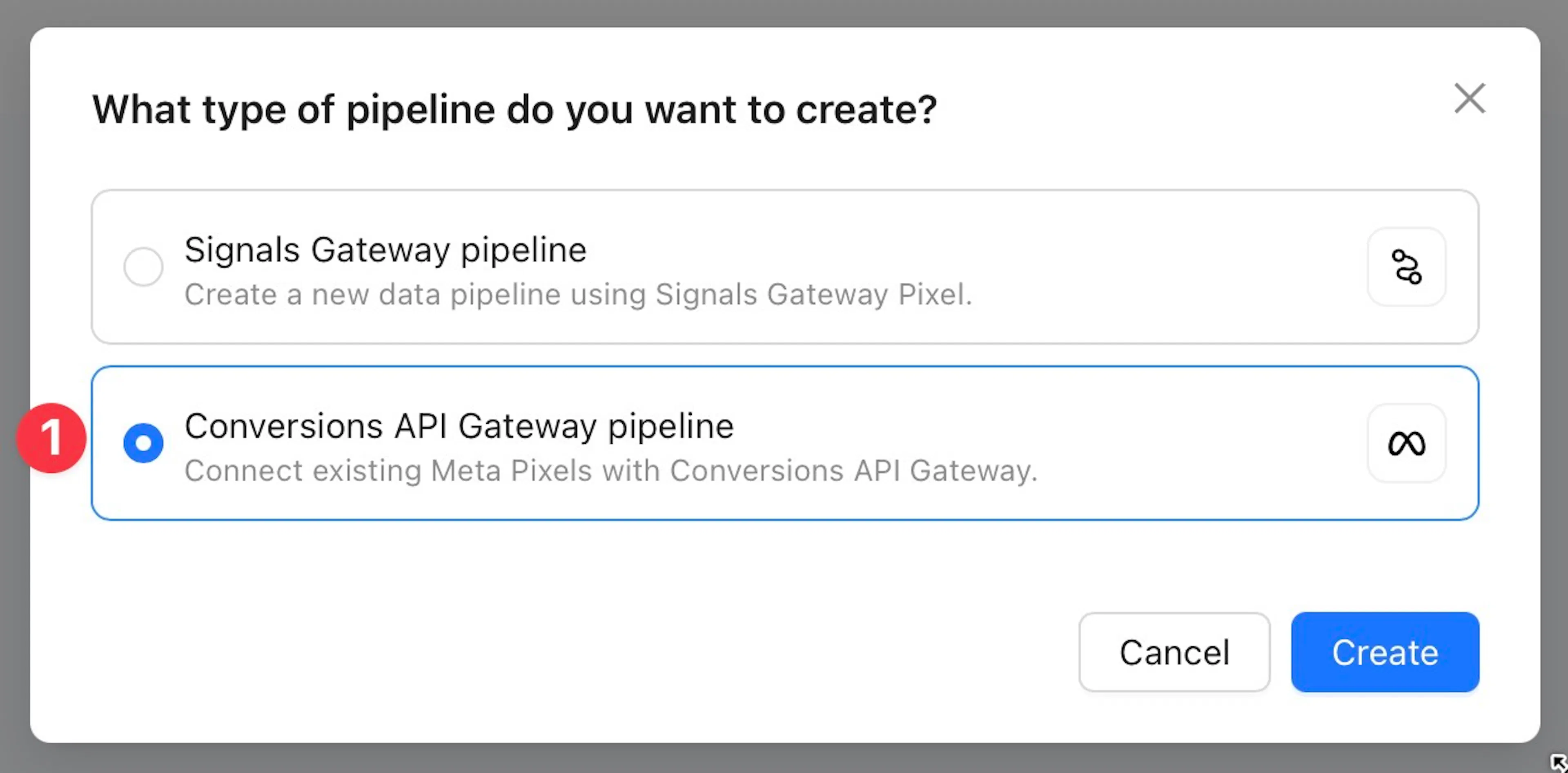
Continue with "Manual Connection" and enter your access token, Dataset ID, and Business ID.
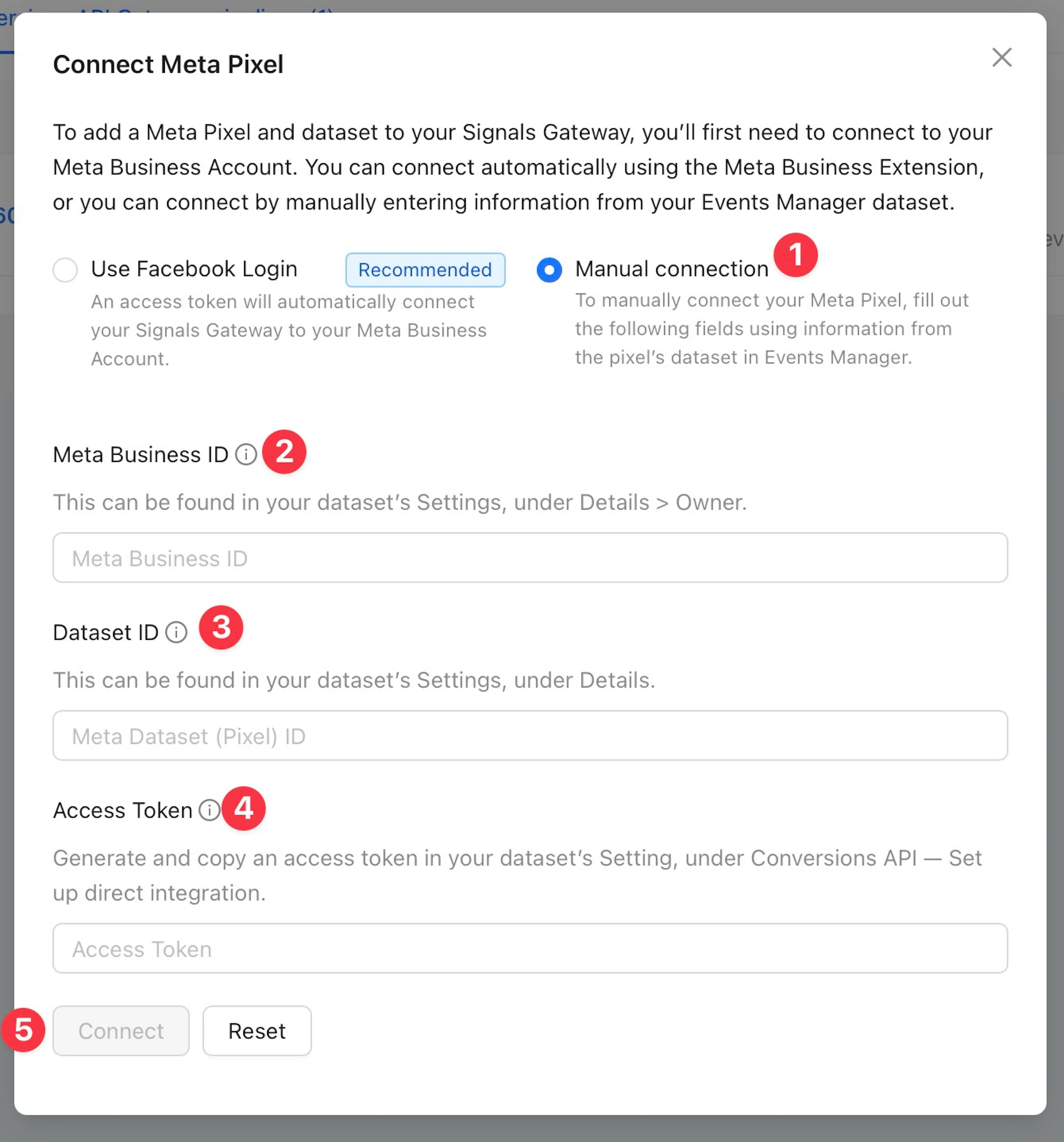
Click Connect to establish the connection.
Enable First-Party Tracking
In Account Settings, navigate to "Data Routing" and click "Optimize".
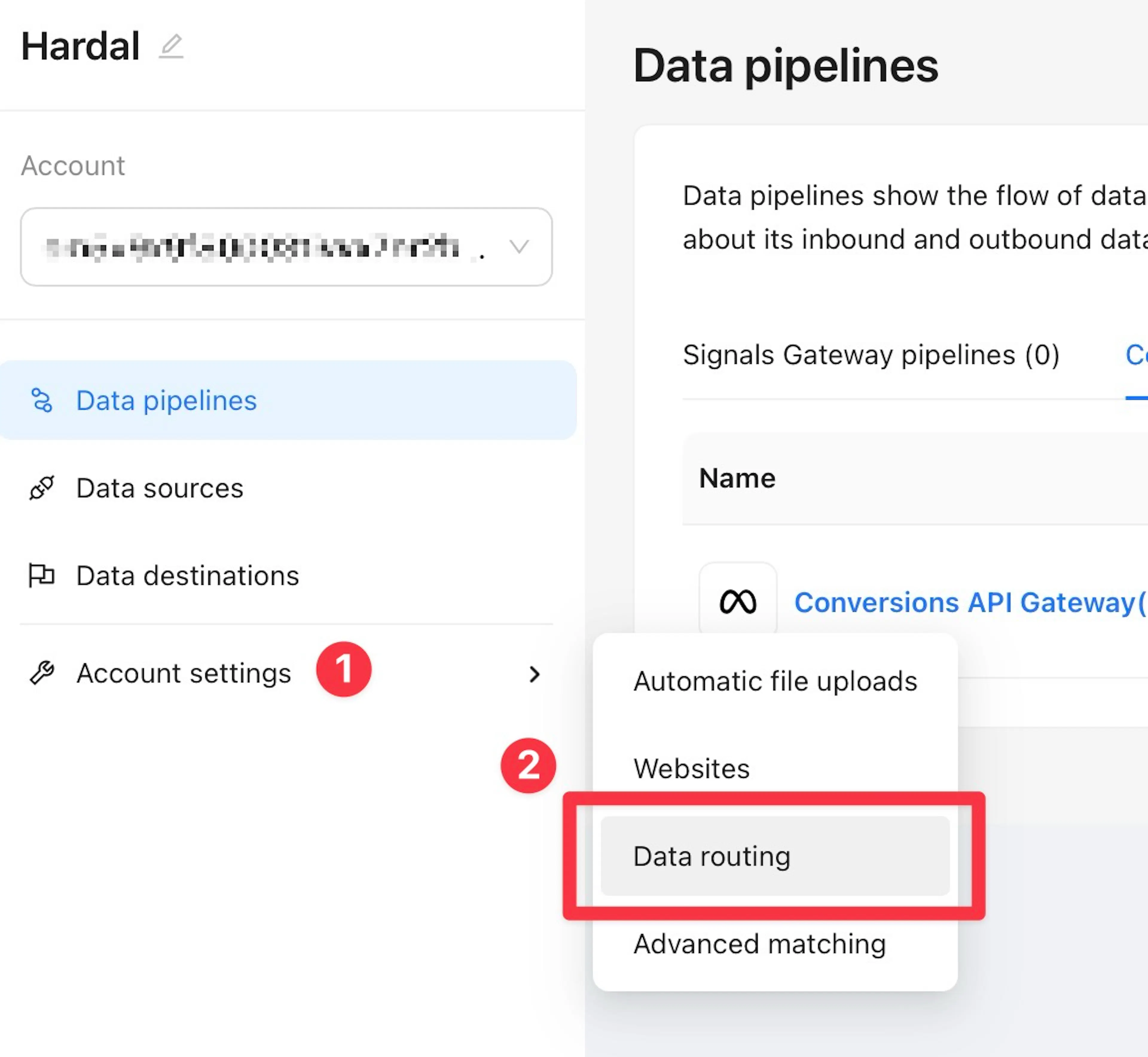
Enter your custom CAPI domain. If you don't have one, refer to DNS Settings
Click "Continue" to complete the setup.
Option 2: Meta Signals Gateway
Deploy Signals Gateway
Navigate to "Server-Side Hosts" in your Hardal dashboard and click "Deploy" for Meta Signals Gateway.
Access to the Meta Signals Gateway Dashboard will be provided automatically.
Create Data Pipeline
In the Signals Gateway Dashboard, click "Create data pipeline" and select "Signals Gateway Pixel" as your data source.
Choose Meta as your destination or configure additional destinations as needed.
Configure Pixel Settings
Provide a name for your new pixel and indicate whether you have an existing Meta Pixel.
Configure data enhancement settings:
-
Enable/disable advanced matching data
-
Choose contact data treatment options
-
Set up custom domain if desired
Using a custom domain (e.g., capig.yourdomain.com) improves data ownership and tracking reliability.
Save your configuration to proceed.
Implementation
Choose your implementation method:
Copy the provided instructions and share them with your development team for direct base code implementation.
-
Create a new Custom HTML Tag
-
Paste the Signals Pixel base code
-
Set appropriate trigger conditions
-
Publish your changes
Verify Connection
Open your Meta Events Manager and confirm that events are being received via both browser (pixel) and server (Signals Gateway).
Advanced Setup Options
For Google Tag Manager users, consider:
-
Meta CAPI via sGTM - Advanced server-side GTM integration
-
Custom event mapping and deduplication setup
Keep your access tokens secure. They provide direct access to your Meta Pixel data.