

Google Analytics 4 - Server Tag
Server GA4 Tag Setup
Set up Google Analytics 4 server-side tracking using Hardal to improve data accuracy, enhance privacy compliance, and bypass ad blockers.
Server GA4 Tag Setup
Clients Tag in Server GTM
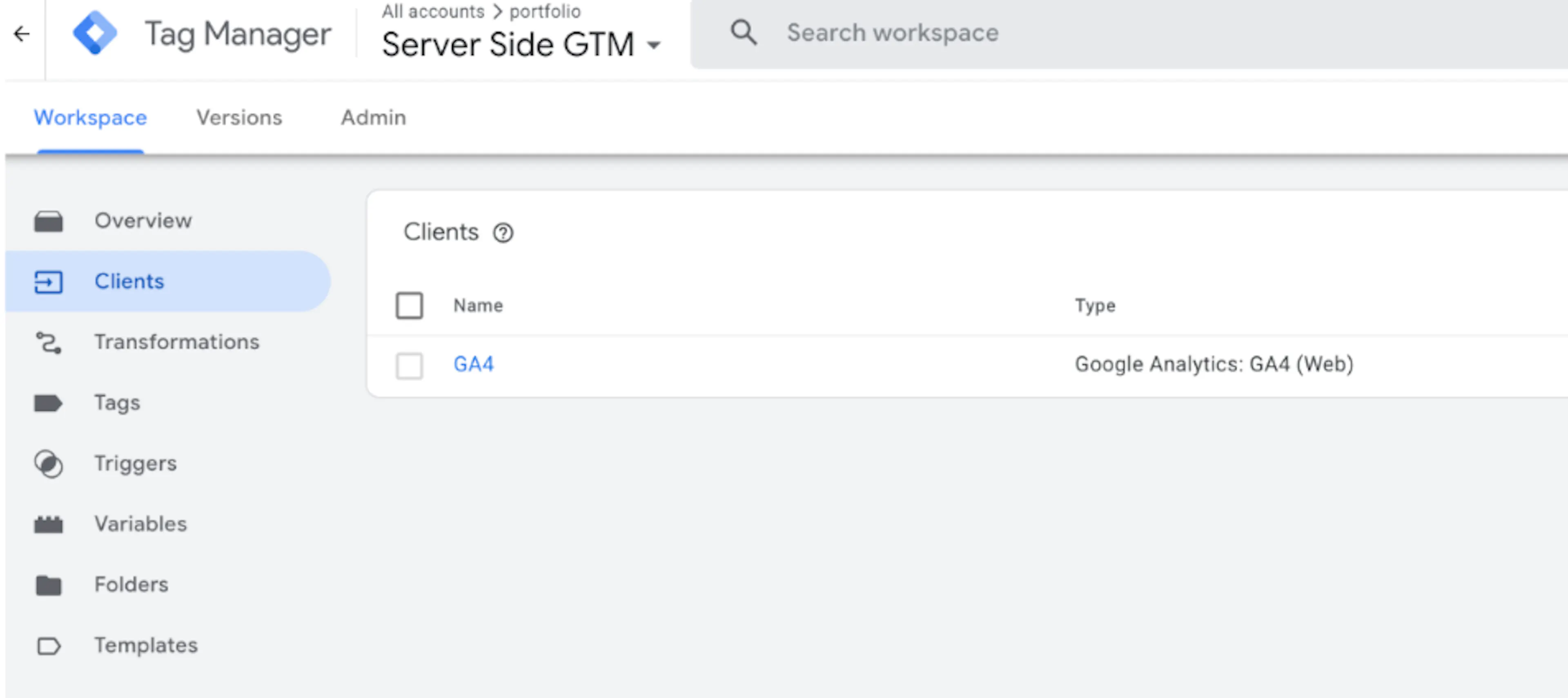
Verify that the GA4 tag exists in the Clients section of the Server Side GTM account.
Tags Section
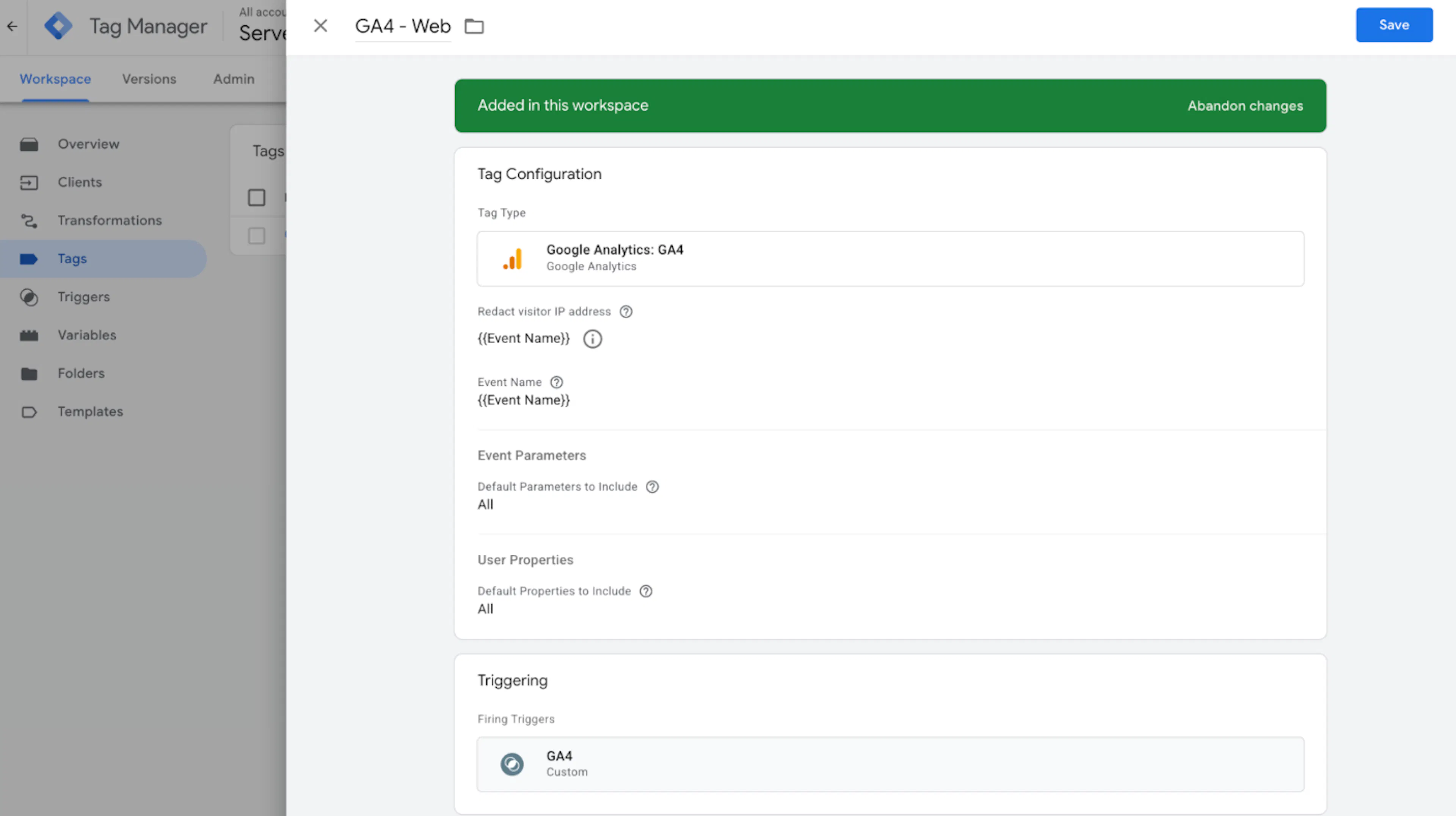
Go to the Tags section, select and add the Google Analytics: GA4 tag. Add the Measurement ID of the GA4 account that is active in the Client GTM account. Leave the Event Name field as {{Event Name}}.
Trigger
Add a trigger. The Client Name equals GA4 condition is suitable for capturing all events.
Client Side GA4 Tag Setup
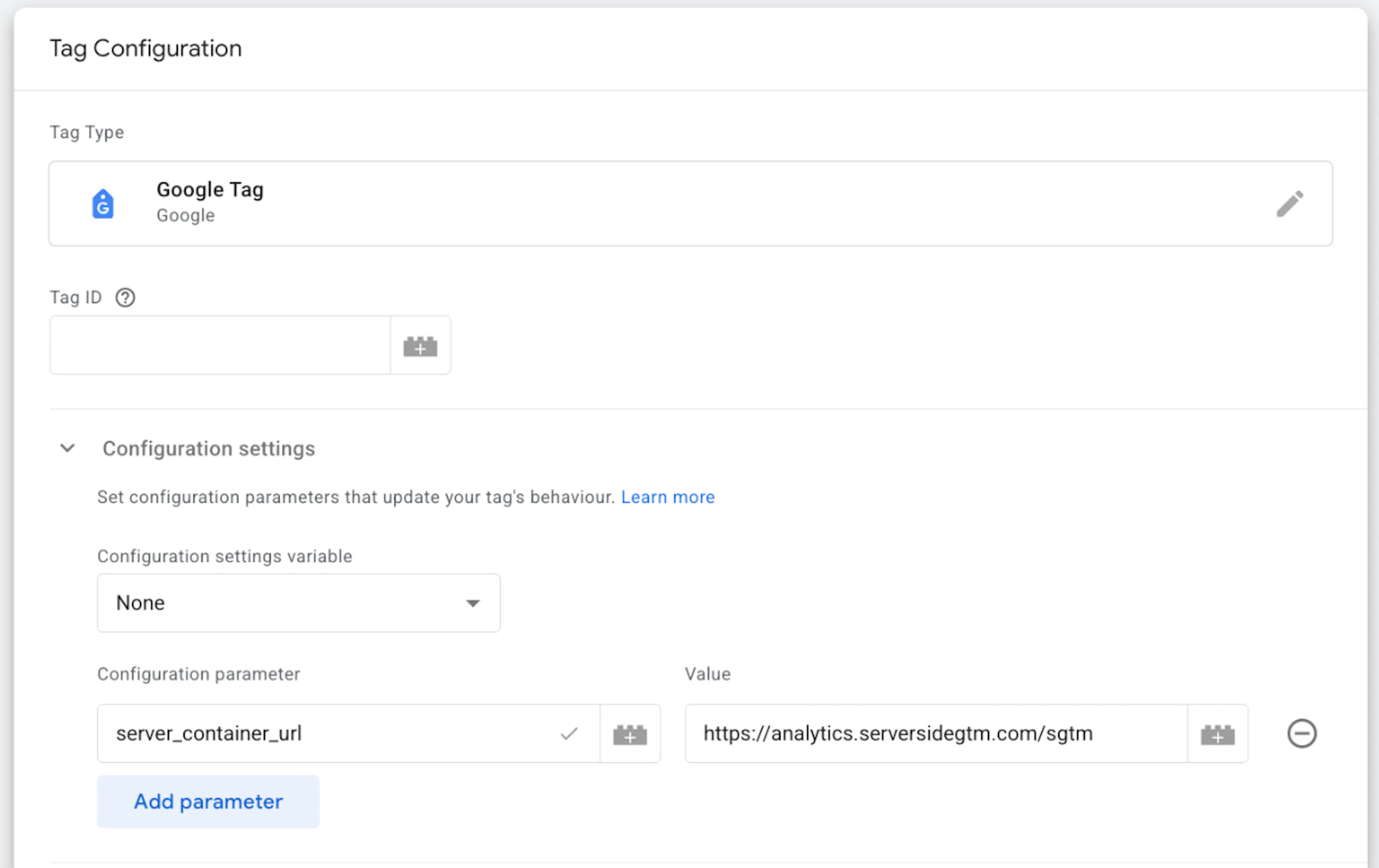
On the client side, the server_container_url parameter is added to the GA4 tag. The Measurement ID is checked.
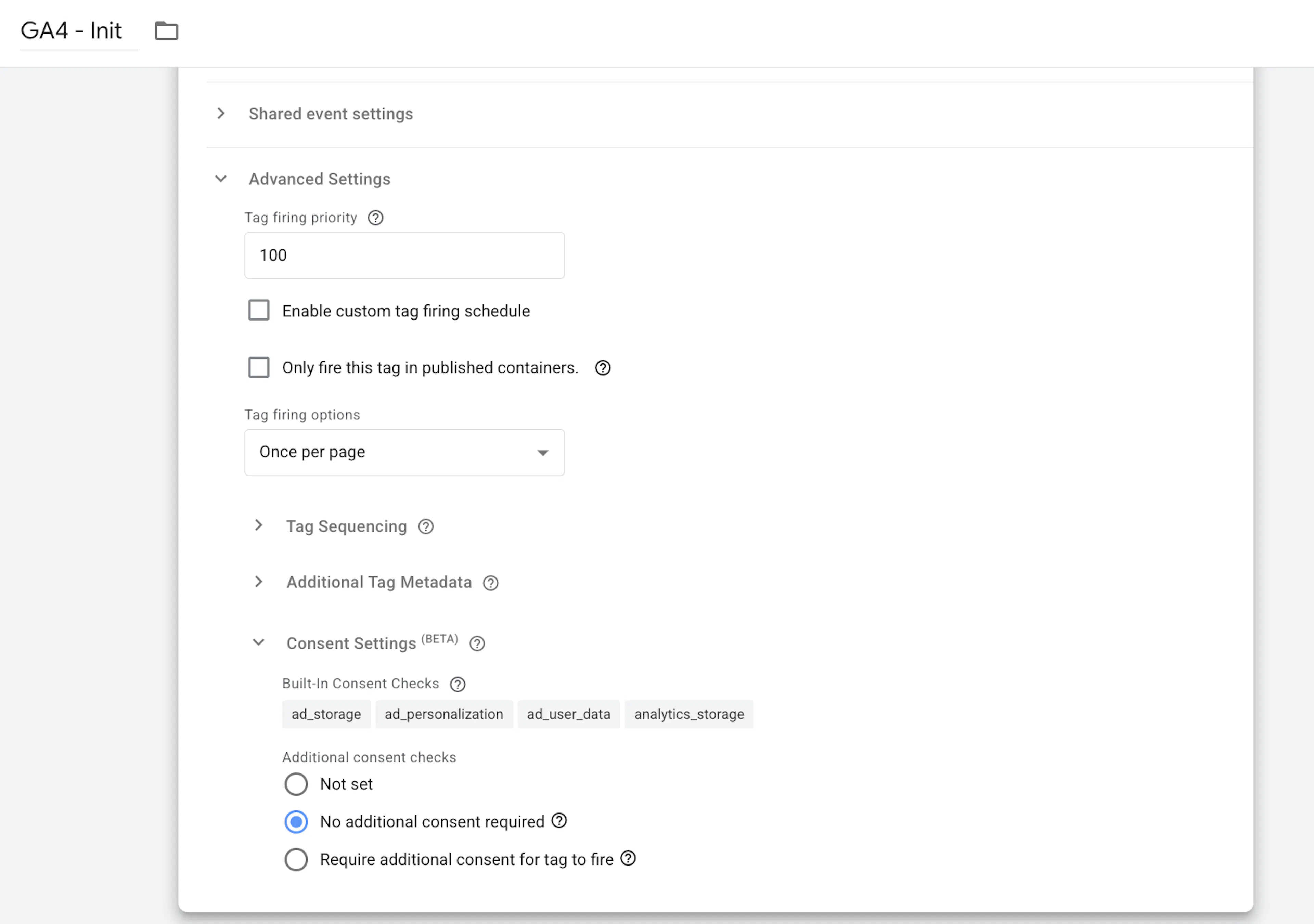
In the client-side GA4 tags, the Consent Settings field is set to “No additional consent required”.
Test Implementation
- Enable Preview mode in both containers
- Navigate to your website
- Verify events reach server container
- Confirm GA4 tag fires in server container
- Check GA4 Real-Time reports for event delivery
You can check this in your browser's DevTools >> Network tab. The client-side tag should now send data to your server container URL (e.g., sgtm.example.com) instead of google-analytics.com. If requests are still going directly to GA, the server_container_url setting might be missing in the client-side configuration.