

Make sure to check the partner’s website and API documentation for the most up-to-date information and configurations.
Meta offers two server-side solutions: Conversions API (established) and Signals Gateway (newer with enhanced privacy). Choose based on your needs.
Solution Comparison
| Feature | Conversions API | Signals Gateway |
|---|---|---|
| Setup Complexity | Standard | Simplified |
| Privacy Controls | Good | Enhanced |
| Data Enhancement | Manual | Automated |
| Custom Domains | Supported | Supported |
| Recommended For | Existing setups | New implementations |
Option 1: Meta Conversions API
Generate Meta Access Token
Access your Meta Business Manager and navigate to Events Manager. Select your Pixel and go to the Settings tab.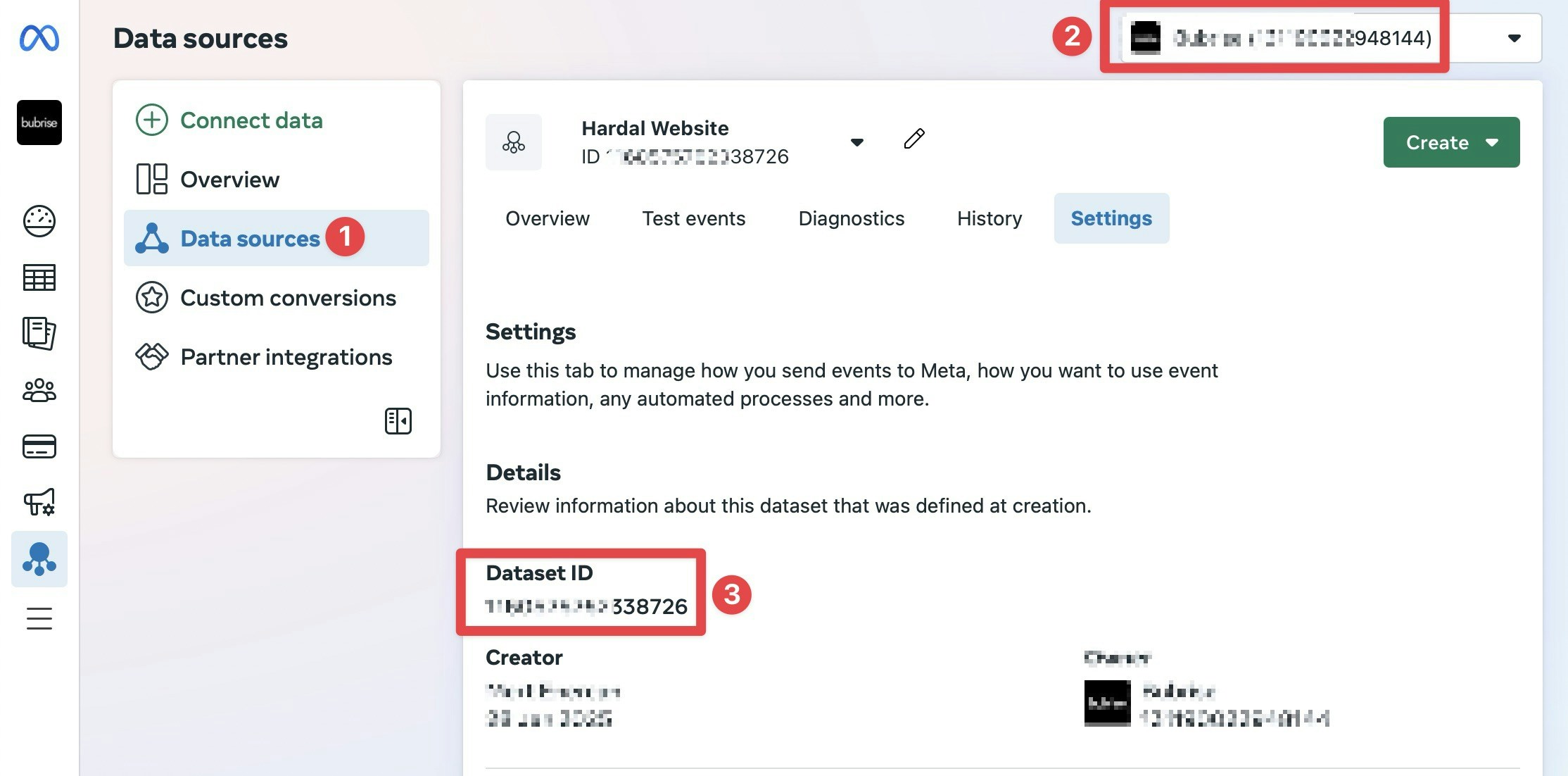
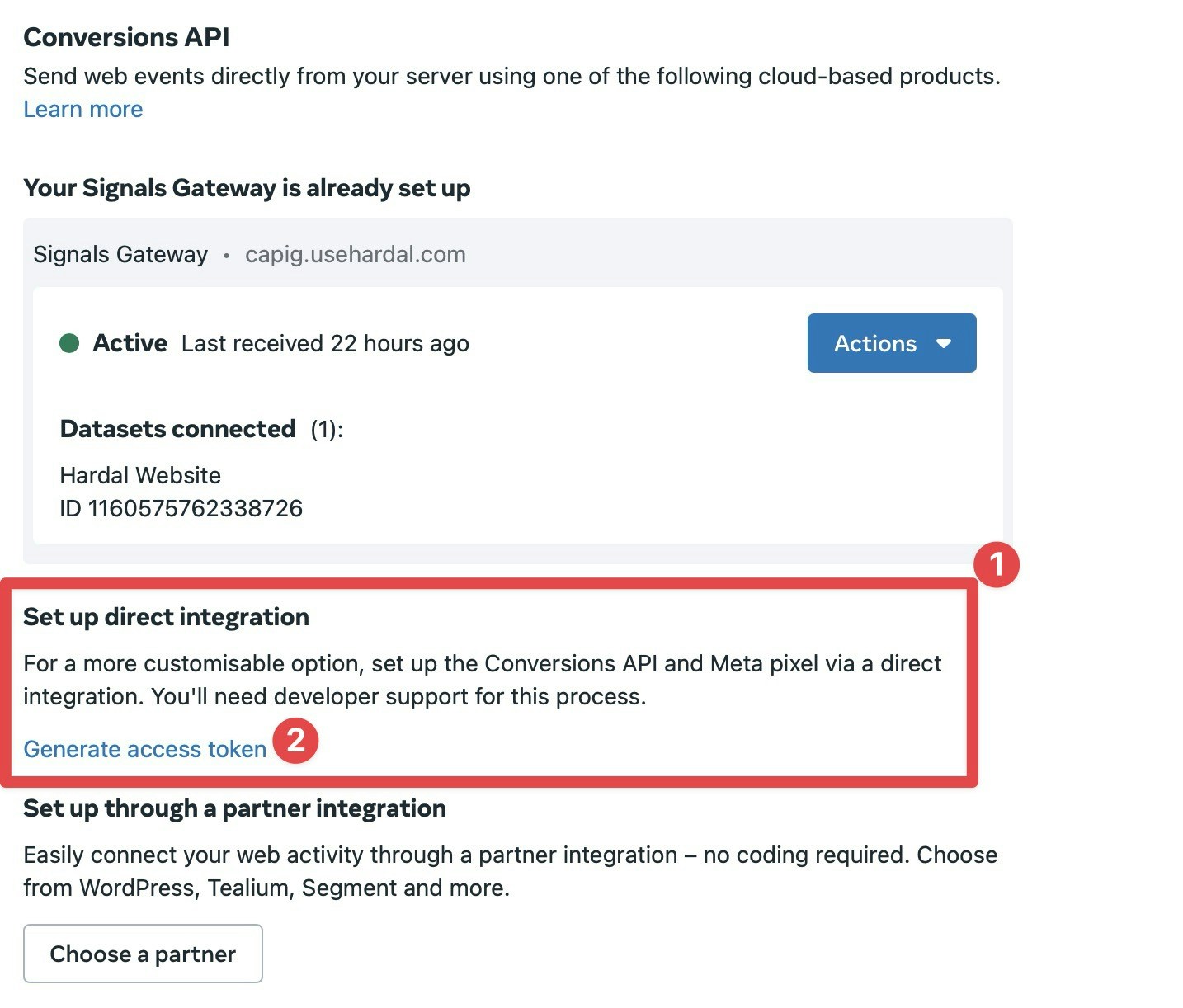
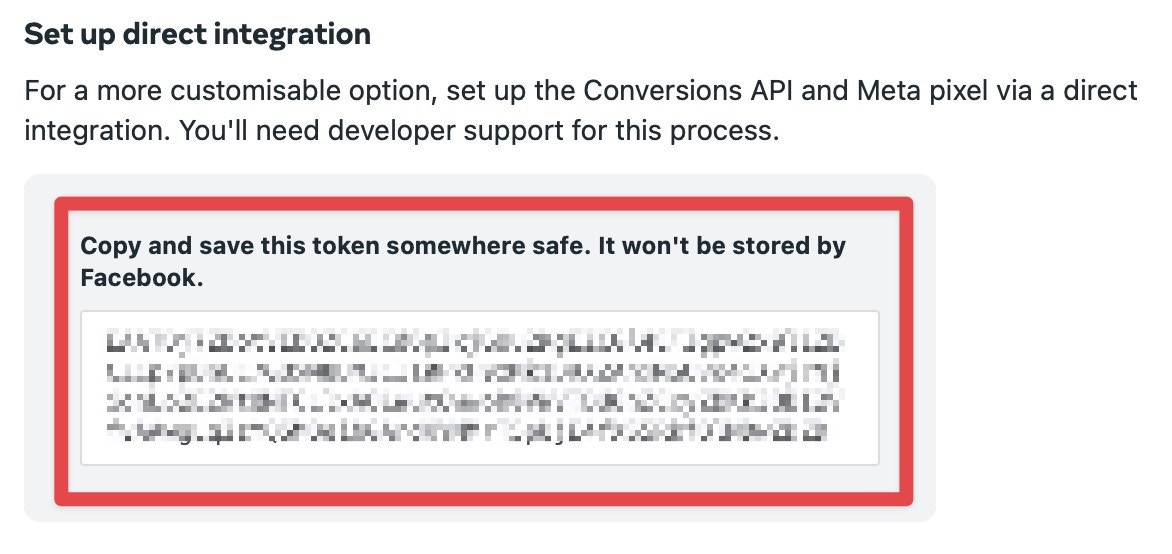
Deploy CAPI Server
Navigate to “Server-Side Hosts” in your Hardal dashboard and click “Deploy” to create a CAPI server.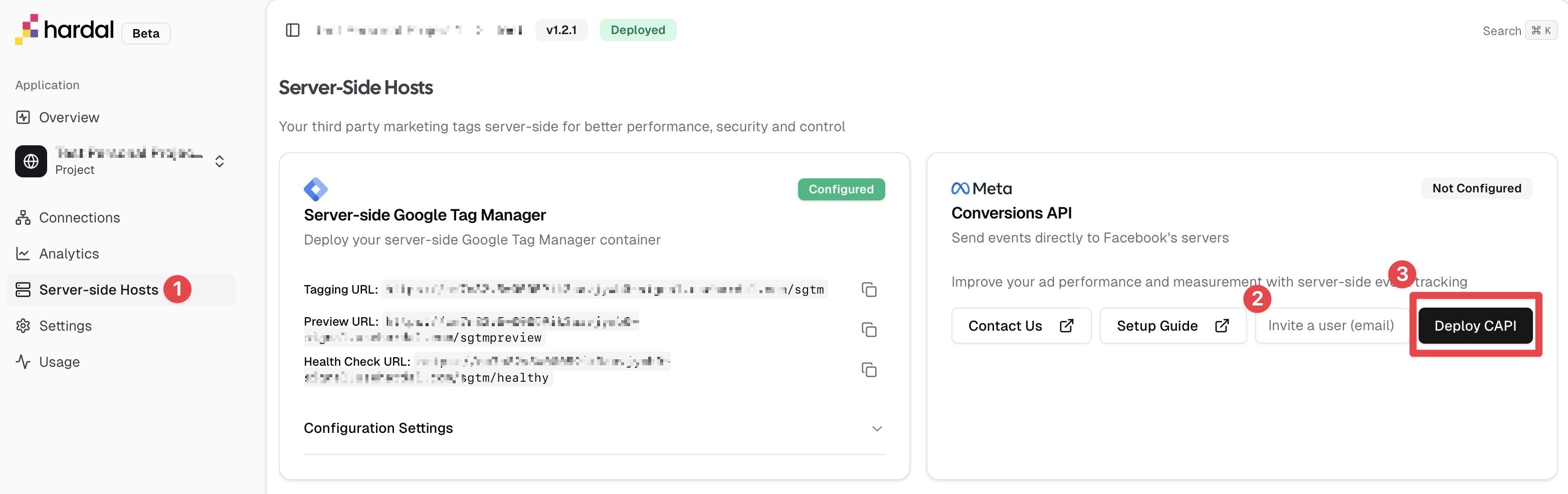
Connect to Meta Pixel
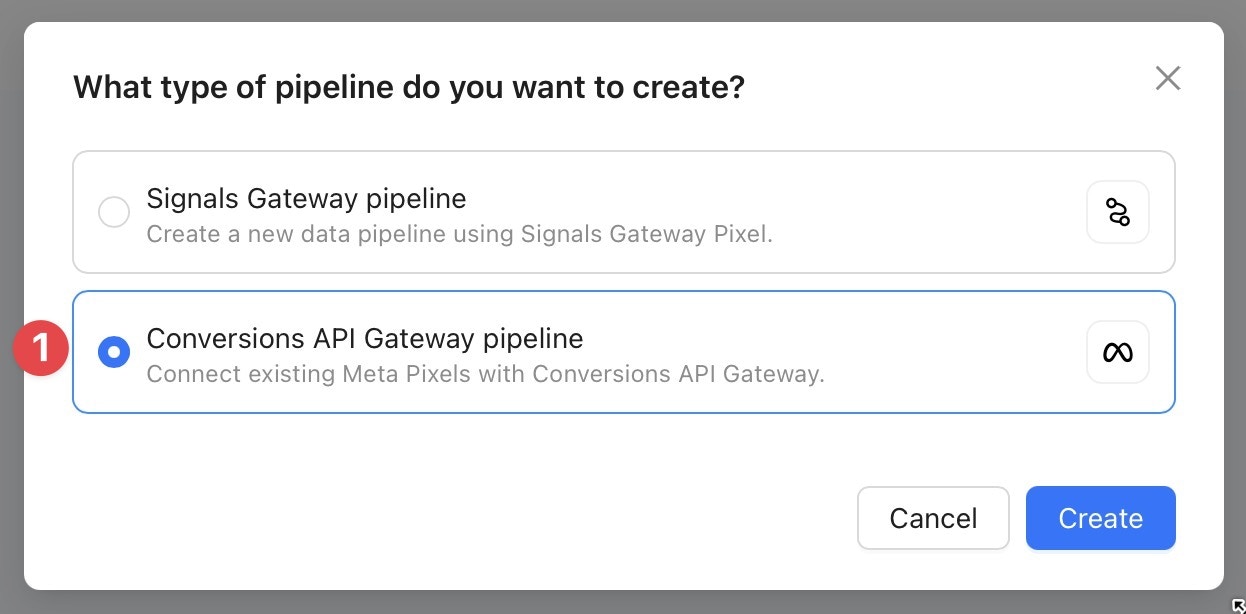
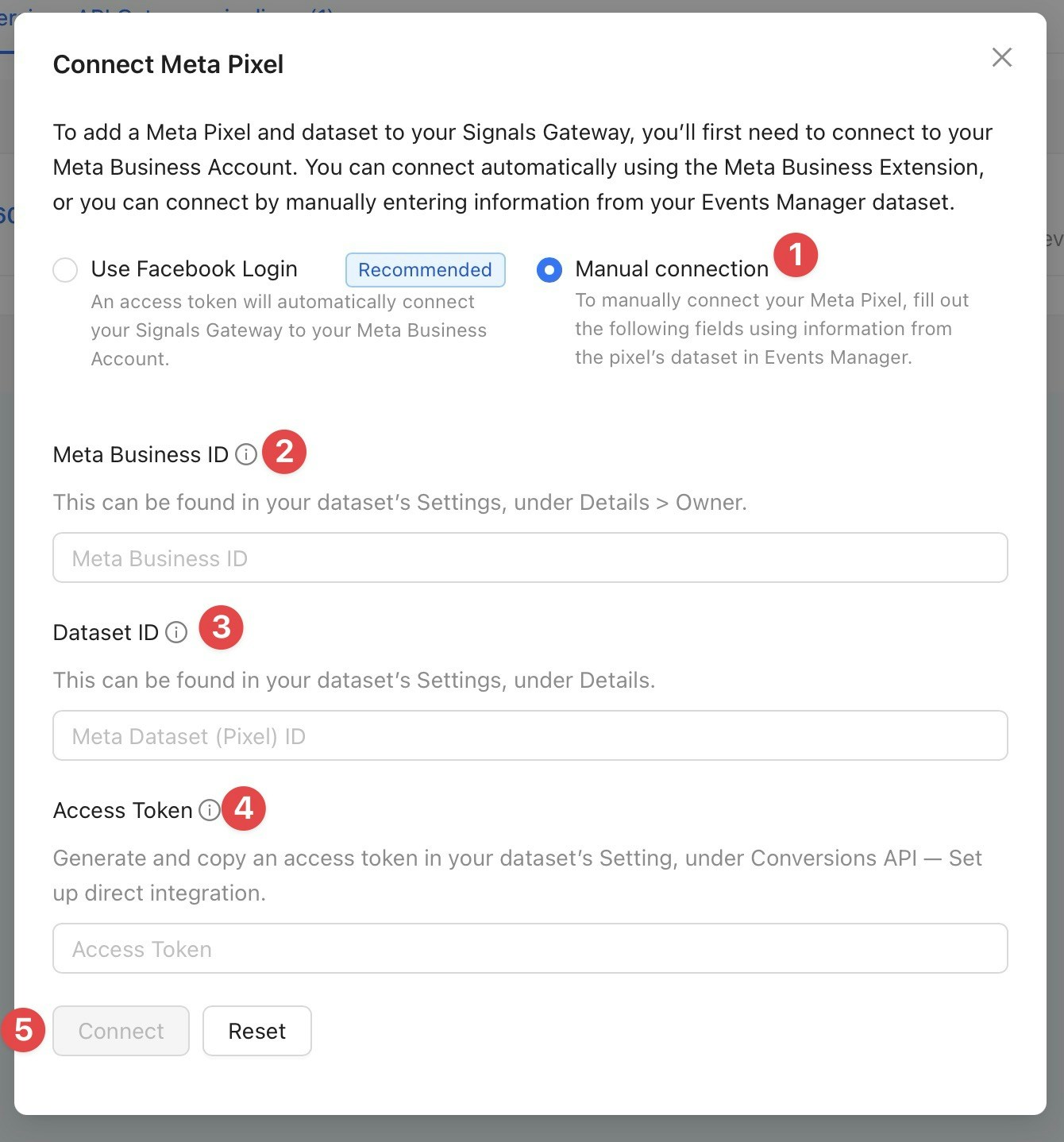
In the Hardal Meta CAPI Dashboard, navigate to Data Pipelines and create a new pipeline.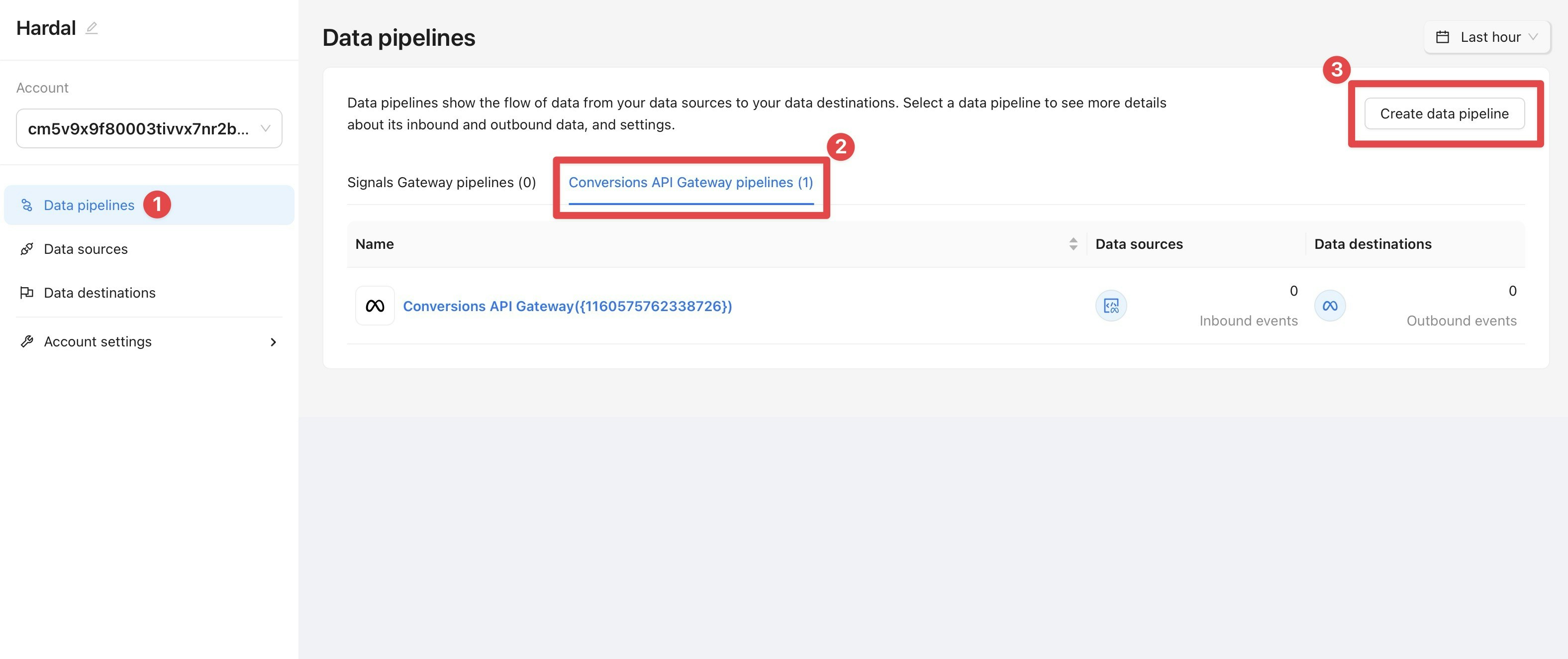
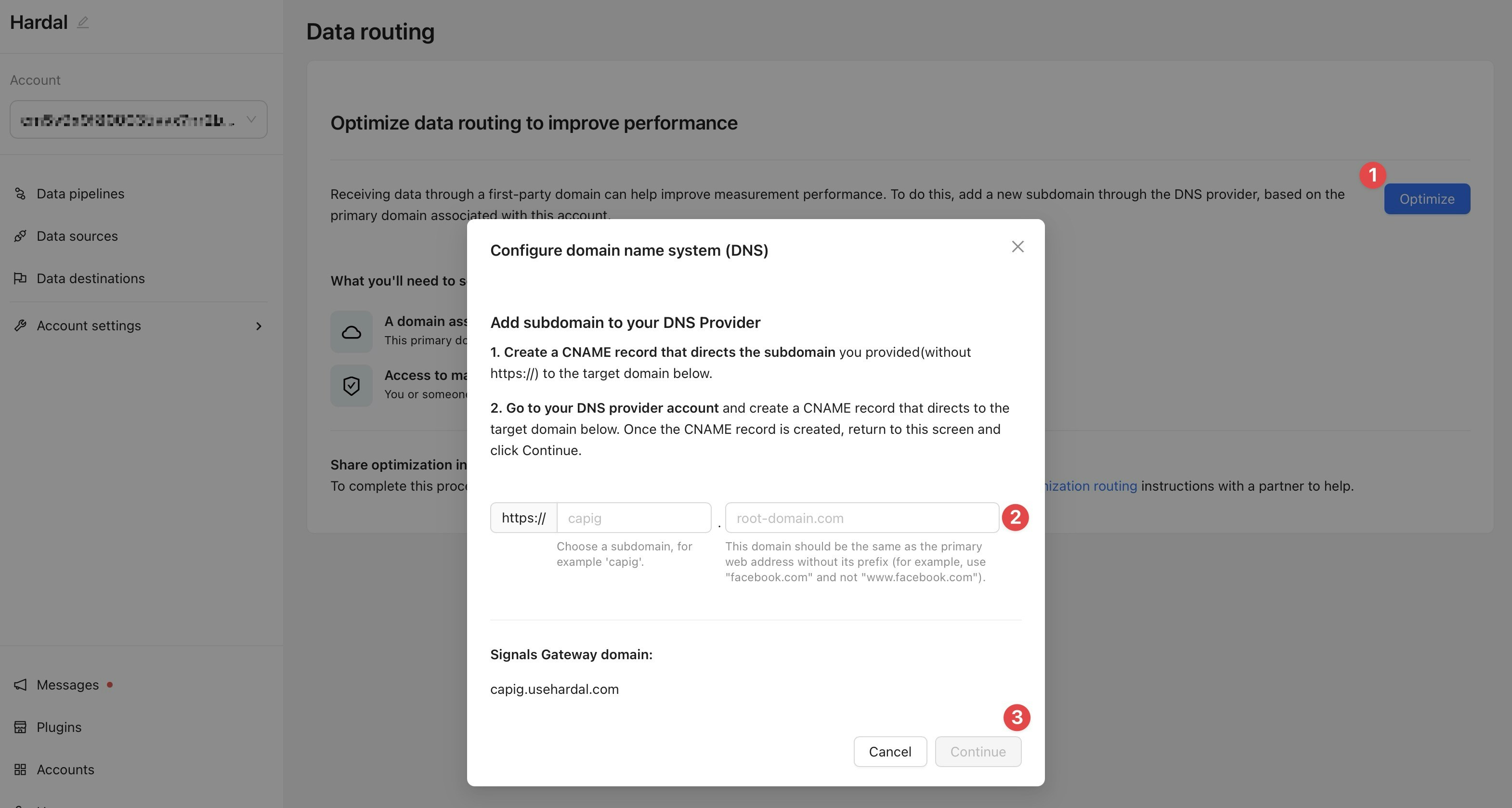
Enable First-Party Tracking
In Account Settings, navigate to “Data Routing” and click “Optimize”.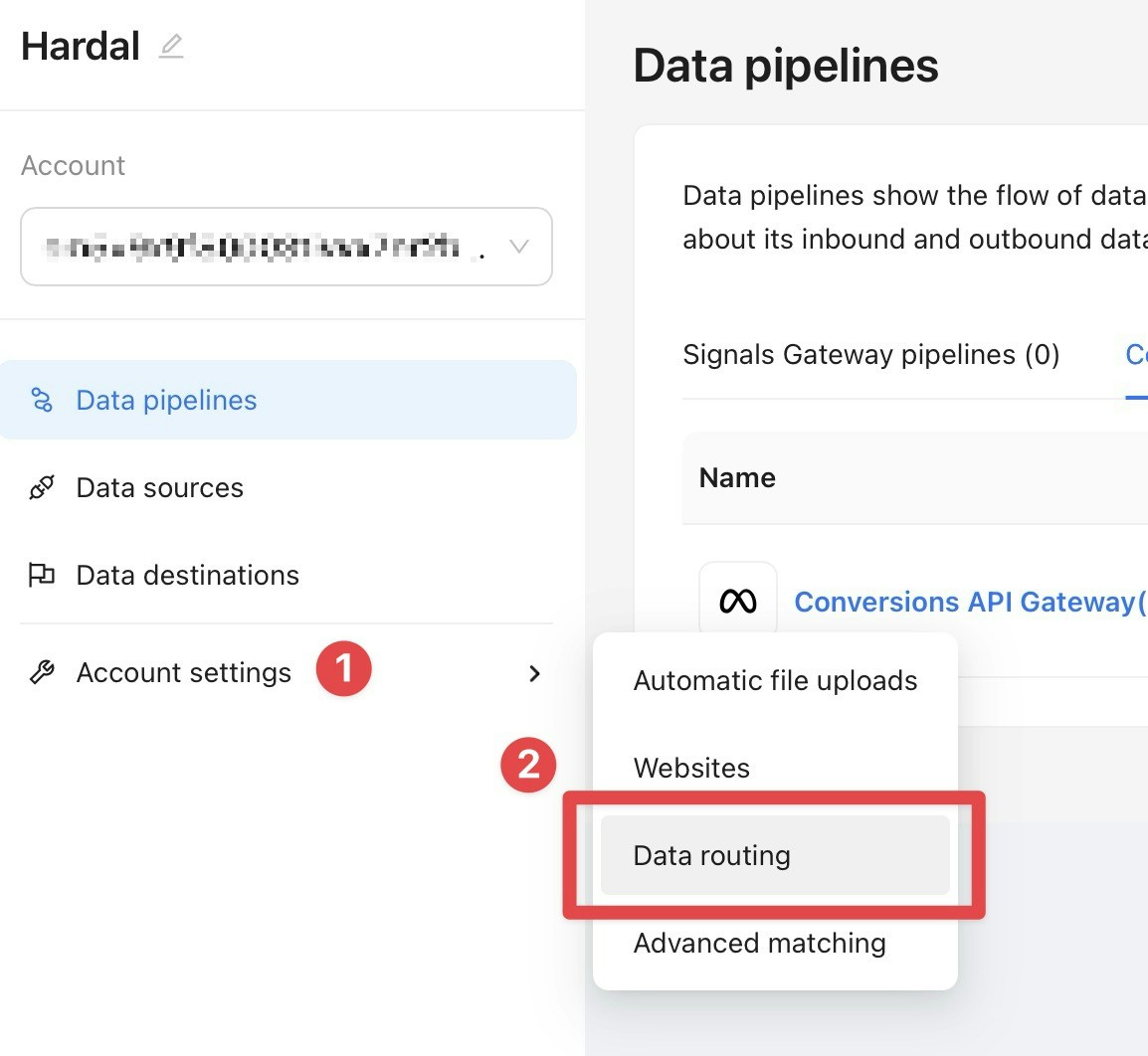
Option 2: Meta Signals Gateway
Deploy Signals Gateway
Navigate to “Server-Side Hosts” in your Hardal dashboard and click “Deploy” for Meta Signals Gateway.
Access to the Meta Signals Gateway Dashboard will be provided automatically.
Create Data Pipeline
In the Signals Gateway Dashboard, click “Create data pipeline” and select “Signals Gateway Pixel” as your data source.Choose Meta as your destination or configure additional destinations as needed.
Configure Pixel Settings
Provide a name for your new pixel and indicate whether you have an existing Meta Pixel.Configure data enhancement settings:
- Enable/disable advanced matching data
- Choose contact data treatment options
- Set up custom domain if desired
Implementation
Choose your implementation method:
- Developer Implementation
- Google Tag Manager
Copy the provided instructions and share them with your development team for direct base code implementation.
Advanced Setup Options
For Google Tag Manager users, consider:- Meta CAPI via sGTM - Advanced server-side GTM integration
- Custom event mapping and deduplication setup